> ## Documentation Index
> Fetch the complete documentation index at: https://inference-docs.cerebras.ai/llms.txt
> Use this file to discover all available pages before exploring further.
# Get Started with Dify
> Learn how to build and deploy AI applications using Cerebras models in Dify's no-code/low-code platform for ultra-fast inference.
Dify is a powerful no-code/low-code platform that enables you to easily build and deploy AI applications powered by large language models. By integrating Cerebras with Dify, you can leverage ultra-fast inference speeds to create responsive AI applications without writing complex code.
## Prerequisites
Before you begin, ensure you have:
* **Cerebras API Key** - Get a free API key [here](https://cloud.cerebras.ai/?utm_source=3pi_dify\&utm_campaign=partner_doc). This key will authenticate your requests to Cerebras Cloud.
* **Dify Account** - Visit [Dify](https://dify.ai/?utm_source=3pi_dify\&utm_campaign=partner_doc) and create a free account or log in to your existing account.
* **Basic understanding of AI workflows** - Familiarity with concepts like prompts, chat completions, and AI agents is helpful but not required.
## Install the Cerebras Plugin
Get the official Cerebras plugin for Dify:
1. Download the latest [`cerebras.difypkg`](https://github.com/sebastiand-cerebras/dify-cerebras/raw/main/releases/cerebras.difypkg) plugin file from the [Cerebras Dify Plugin repository](https://github.com/sebastiand-cerebras/dify-cerebras)
2. Save the file to your computer
Alternatively, if you're building the plugin from source, you can package it using the Dify plugin CLI tool.
Add the Cerebras plugin to your Dify instance:
1. Log in to your Dify account
2. Navigate to **Settings** > **Plugins**
3. Click **"Install Plugin"** or **"Upload Plugin"**
4. Select the `cerebras.difypkg` file you downloaded
5. Wait for the installation to complete
The plugin will be automatically enabled once installation finishes.
Authenticate the plugin with your Cerebras API key:
1. Click your user profile icon in the top-right corner
2. Navigate to **Settings** > **Model Providers** (or **Workspace Settings** > **Model Providers** depending on your role)
3. Locate **Cerebras** in the list of available providers
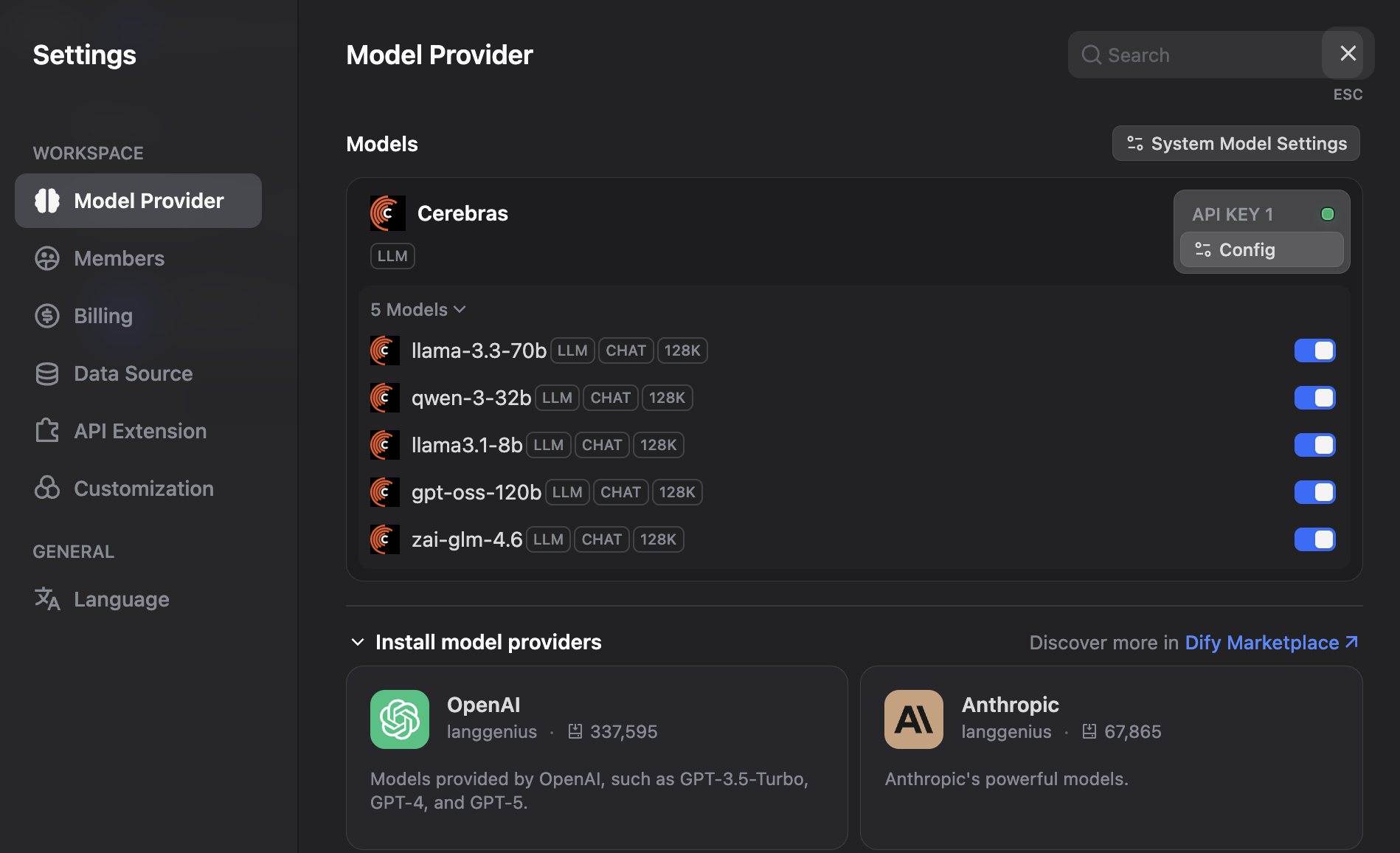 4. Click **Configure** or the settings icon next to Cerebras
5. In the configuration modal:
* Enter an **Authorization Name** (e.g., "Cerebras Production")
* Paste your **Cerebras API Key** (starts with `csk_`)
* Verify the **API Base URL** is `https://api.cerebras.ai/v1`
* Click **Test Connection** to validate credentials (optional but recommended)
6. Click **Save** to store your configuration
Dify will test the connection to ensure your API key is valid.
Keep your API key secure and never share it publicly. If you accidentally expose your key, regenerate it immediately in the Cerebras Cloud dashboard.
Choose which Cerebras model you want to use for your application. Different models offer different capabilities and performance characteristics.
**Available Models:**
* **gpt-oss-120b** - Largest model for the most demanding tasks
* **zai-glm-4.7** - Advanced 357B parameter model with strong reasoning capabilities
Select the model that best fits your application's needs. You can always change this later.
With Cerebras configured, you're ready to build your first AI application in Dify.
1. Navigate to the **Studio** or **Applications** section
2. Click **Create Application** or **New App**
3. Choose your application type:
* **Chatbot** - For conversational AI applications
* **Text Generator** - For content creation and completion tasks
* **Agent** - For autonomous AI agents that can use tools
* **Workflow** - For complex multi-step AI processes
4. In the model configuration section, select **Cerebras** as your provider
5. Choose your preferred Cerebras model from the dropdown
6. Configure your prompt, parameters, and other settings
7. Click **Save** and start testing your application
Dify provides a built-in testing interface to validate your AI application before deployment.
1. Use the **Debug and Preview** panel on the right side of the screen
2. Enter a test prompt or message
3. Click **Run** or **Send** to see the response from your Cerebras model
4. Adjust your prompts, parameters, or model selection as needed
5. Iterate until you're satisfied with the results
The ultra-fast inference speeds of Cerebras mean you'll get responses in milliseconds, making iteration quick and efficient.
Once you're happy with your application, deploy it for others to use.
1. Click **Publish** or **Deploy** in the top-right corner
2. Choose your deployment method:
* **API** - Get an API endpoint to integrate into your own applications
* **Web App** - Generate a shareable web interface
* **Embed** - Get an embed code for your website
3. Configure access controls and rate limits if needed
4. Copy your deployment URL or API credentials
Your application is now live and powered by Cerebras's lightning-fast inference!
## Using Cerebras Models Programmatically
While Dify provides a no-code interface, you can also interact with your Dify applications programmatically using the Dify API. Here's how to call a Dify application that uses Cerebras models.
First, we need to install the `requests` package:
```bash theme={null}
pip install requests
```
```python theme={null}
import os
import requests
# Get your Dify API key from the application settings
DIFY_API_KEY = os.getenv("DIFY_API_KEY")
DIFY_API_URL = "https://api.dify.ai/v1"
# Make a request to your Dify application
response = requests.post(
f"{DIFY_API_URL}/chat-messages",
headers={
"Authorization": f"Bearer {DIFY_API_KEY}",
"Content-Type": "application/json",
},
json={
"inputs": {},
"query": "What are the benefits of using Cerebras for AI inference?",
"response_mode": "blocking",
"user": "user-123",
},
)
result = response.json()
print(result["answer"])
```
```bash cURL theme={null}
curl -X POST 'https://api.dify.ai/v1/chat-messages' \
-H 'Authorization: Bearer YOUR_DIFY_API_KEY' \
-H 'Content-Type: application/json' \
-d '{
"inputs": {},
"query": "What are the benefits of using Cerebras for AI inference?",
"response_mode": "blocking",
"user": "user-123"
}'
```
This code calls your Dify application, which in turn uses Cerebras models for inference. The response will be generated with Cerebras's industry-leading speed.
## Streaming Responses
For real-time, responsive applications, you can use streaming mode to receive responses as they're generated:
```python theme={null}
import os
import requests
import json
DIFY_API_KEY = os.getenv("DIFY_API_KEY")
DIFY_API_URL = "https://api.dify.ai/v1"
response = requests.post(
f"{DIFY_API_URL}/chat-messages",
headers={
"Authorization": f"Bearer {DIFY_API_KEY}",
"Content-Type": "application/json",
},
json={
"inputs": {},
"query": "Write a short poem about fast AI inference",
"response_mode": "streaming",
"user": "user-123",
},
stream=True,
)
for line in response.iter_lines():
if line:
line_str = line.decode('utf-8')
if line_str.startswith('data: '):
data = json.loads(line_str[6:])
if data.get('event') == 'message':
print(data.get('answer', ''), end='', flush=True)
```
```bash cURL theme={null}
curl -X POST 'https://api.dify.ai/v1/chat-messages' \
-H 'Authorization: Bearer YOUR_DIFY_API_KEY' \
-H 'Content-Type: application/json' \
-d '{
"inputs": {},
"query": "Write a short poem about fast AI inference",
"response_mode": "streaming",
"user": "user-123"
}'
```
## Advanced Configuration
Dify allows you to fine-tune model parameters for optimal performance:
* **Temperature** - Controls randomness (0.0 = deterministic, 1.0 = creative)
* **Max Tokens** - Limits response length
* **Top P** - Controls diversity via nucleus sampling
* **Frequency Penalty** - Reduces repetition
* **Presence Penalty** - Encourages topic diversity
Experiment with these settings to achieve the best results for your use case.
You can configure multiple Cerebras models in Dify and switch between them based on your needs:
1. Add multiple model configurations in the Model Providers settings
2. In your application, select different models for different tasks
3. Use **gpt-oss-120b** for complex reasoning
4. Use **gpt-oss-120b** for simple, high-speed tasks
For a more responsive user experience, enable streaming to show responses as they're generated:
1. In your Dify application settings, navigate to the response configuration
2. Enable **Streaming Mode**
3. Your users will see responses appear word-by-word in real-time
Cerebras's fast inference makes streaming especially smooth and responsive.
Track your Cerebras usage through both platforms:
* **Dify Dashboard** - View application-level metrics and user interactions
* **Cerebras Cloud Dashboard** - Monitor API usage, costs, and performance at [cloud.cerebras.ai](https://cloud.cerebras.ai/?utm_source=3pi_dify\&utm_campaign=partner_doc)
## Next Steps
* Explore the [Dify documentation](https://docs.dify.ai/?utm_source=3pi_dify\&utm_campaign=partner_doc) for advanced features
* Try different [Cerebras models](/models) to find the best fit for your use case
* Review the [Cerebras API reference](/api-reference/chat-completions) for direct integration options
* Migrate to the latest model with the [GLM4.7 migration guide](https://inference-docs.cerebras.ai/resources/glm-47-migration?utm_source=3pi_dify\&utm_campaign=partner_doc)
## Troubleshooting
**Problem:** Dify shows an error when validating your Cerebras API key.
**Solution:**
* Verify your API key is correct and starts with `csk-`
* Check that your key hasn't expired in the Cerebras Cloud dashboard
* Ensure you're copying the entire key without extra spaces
* Try regenerating your API key if the issue persists
**Problem:** Your application is responding slower than expected.
**Solution:**
* Check your internet connection and Dify's status page
* Verify you're using a Cerebras model (not a different provider)
* Consider using a smaller model like **gpt-oss-120b** for faster responses
* Review your prompt complexity - simpler prompts generate faster
* Check the Cerebras Cloud status at [status.cerebras.ai](https://status.cerebras.ai/?utm_source=3pi_dify\&utm_campaign=partner_doc)
**Problem:** A specific Cerebras model isn't showing up in Dify.
**Solution:**
* Refresh your browser and check again
* Verify the model is currently available in [Cerebras Cloud](https://cloud.cerebras.ai/?utm_source=3pi_dify\&utm_campaign=partner_doc)
* Contact Dify support if the issue persists
* Try using an alternative model from the available list
**Problem:** You're hitting rate limits or quota restrictions.
**Solution:**
* Check your current usage in the Cerebras Cloud dashboard
* Upgrade your Cerebras plan if you need higher limits
* Implement caching in your Dify application to reduce redundant calls
* Use Dify's built-in rate limiting features to control usage
**Problem:** Your deployed Dify application stops responding.
**Solution:**
* Check the Dify application logs for errors
* Verify your Cerebras API key is still valid
* Ensure you haven't exceeded your API quota
* Restart your application in the Dify dashboard
* Contact Dify support if the issue continues
## FAQ
Yes! Dify supports using multiple model providers within a single application. You can configure different providers for different parts of your workflow, allowing you to leverage Cerebras's speed where it matters most while using other providers for specialized tasks.
Dify itself offers free and paid tiers. Cerebras charges separately based on token usage. Check the [Cerebras pricing page](https://cerebras.ai/pricing?utm_source=3pi_dify\&utm_campaign=partner_doc) for current rates. You'll only pay for the tokens you use, with no minimum commitments.
Absolutely! You can change the Cerebras model used by your Dify application at any time without redeploying. Simply update the model selection in your application settings, and the changes will take effect immediately.
Yes, Dify fully supports streaming responses from Cerebras models. This allows your users to see responses as they're generated, providing an even more responsive experience. Enable streaming in your application's response settings.
Yes! Cerebras models can be used in any Dify workflow node that requires an LLM. This includes conditional logic, data transformation, and multi-step processes. The fast inference speeds make complex workflows feel instantaneous.
Using Cerebras through Dify provides a no-code interface for building applications, while direct API access gives you more control and flexibility. Dify is ideal for rapid prototyping and non-technical users, while direct integration is better for custom applications with specific requirements.
Dify provides built-in error handling and logging. You can view error messages in the application logs and configure retry logic for failed requests. For production applications, implement proper error handling in your API calls and monitor the Cerebras Cloud dashboard for any service issues.
4. Click **Configure** or the settings icon next to Cerebras
5. In the configuration modal:
* Enter an **Authorization Name** (e.g., "Cerebras Production")
* Paste your **Cerebras API Key** (starts with `csk_`)
* Verify the **API Base URL** is `https://api.cerebras.ai/v1`
* Click **Test Connection** to validate credentials (optional but recommended)
6. Click **Save** to store your configuration
Dify will test the connection to ensure your API key is valid.
Keep your API key secure and never share it publicly. If you accidentally expose your key, regenerate it immediately in the Cerebras Cloud dashboard.
Choose which Cerebras model you want to use for your application. Different models offer different capabilities and performance characteristics.
**Available Models:**
* **gpt-oss-120b** - Largest model for the most demanding tasks
* **zai-glm-4.7** - Advanced 357B parameter model with strong reasoning capabilities
Select the model that best fits your application's needs. You can always change this later.
With Cerebras configured, you're ready to build your first AI application in Dify.
1. Navigate to the **Studio** or **Applications** section
2. Click **Create Application** or **New App**
3. Choose your application type:
* **Chatbot** - For conversational AI applications
* **Text Generator** - For content creation and completion tasks
* **Agent** - For autonomous AI agents that can use tools
* **Workflow** - For complex multi-step AI processes
4. In the model configuration section, select **Cerebras** as your provider
5. Choose your preferred Cerebras model from the dropdown
6. Configure your prompt, parameters, and other settings
7. Click **Save** and start testing your application
Dify provides a built-in testing interface to validate your AI application before deployment.
1. Use the **Debug and Preview** panel on the right side of the screen
2. Enter a test prompt or message
3. Click **Run** or **Send** to see the response from your Cerebras model
4. Adjust your prompts, parameters, or model selection as needed
5. Iterate until you're satisfied with the results
The ultra-fast inference speeds of Cerebras mean you'll get responses in milliseconds, making iteration quick and efficient.
Once you're happy with your application, deploy it for others to use.
1. Click **Publish** or **Deploy** in the top-right corner
2. Choose your deployment method:
* **API** - Get an API endpoint to integrate into your own applications
* **Web App** - Generate a shareable web interface
* **Embed** - Get an embed code for your website
3. Configure access controls and rate limits if needed
4. Copy your deployment URL or API credentials
Your application is now live and powered by Cerebras's lightning-fast inference!
## Using Cerebras Models Programmatically
While Dify provides a no-code interface, you can also interact with your Dify applications programmatically using the Dify API. Here's how to call a Dify application that uses Cerebras models.
First, we need to install the `requests` package:
```bash theme={null}
pip install requests
```
```python theme={null}
import os
import requests
# Get your Dify API key from the application settings
DIFY_API_KEY = os.getenv("DIFY_API_KEY")
DIFY_API_URL = "https://api.dify.ai/v1"
# Make a request to your Dify application
response = requests.post(
f"{DIFY_API_URL}/chat-messages",
headers={
"Authorization": f"Bearer {DIFY_API_KEY}",
"Content-Type": "application/json",
},
json={
"inputs": {},
"query": "What are the benefits of using Cerebras for AI inference?",
"response_mode": "blocking",
"user": "user-123",
},
)
result = response.json()
print(result["answer"])
```
```bash cURL theme={null}
curl -X POST 'https://api.dify.ai/v1/chat-messages' \
-H 'Authorization: Bearer YOUR_DIFY_API_KEY' \
-H 'Content-Type: application/json' \
-d '{
"inputs": {},
"query": "What are the benefits of using Cerebras for AI inference?",
"response_mode": "blocking",
"user": "user-123"
}'
```
This code calls your Dify application, which in turn uses Cerebras models for inference. The response will be generated with Cerebras's industry-leading speed.
## Streaming Responses
For real-time, responsive applications, you can use streaming mode to receive responses as they're generated:
```python theme={null}
import os
import requests
import json
DIFY_API_KEY = os.getenv("DIFY_API_KEY")
DIFY_API_URL = "https://api.dify.ai/v1"
response = requests.post(
f"{DIFY_API_URL}/chat-messages",
headers={
"Authorization": f"Bearer {DIFY_API_KEY}",
"Content-Type": "application/json",
},
json={
"inputs": {},
"query": "Write a short poem about fast AI inference",
"response_mode": "streaming",
"user": "user-123",
},
stream=True,
)
for line in response.iter_lines():
if line:
line_str = line.decode('utf-8')
if line_str.startswith('data: '):
data = json.loads(line_str[6:])
if data.get('event') == 'message':
print(data.get('answer', ''), end='', flush=True)
```
```bash cURL theme={null}
curl -X POST 'https://api.dify.ai/v1/chat-messages' \
-H 'Authorization: Bearer YOUR_DIFY_API_KEY' \
-H 'Content-Type: application/json' \
-d '{
"inputs": {},
"query": "Write a short poem about fast AI inference",
"response_mode": "streaming",
"user": "user-123"
}'
```
## Advanced Configuration
Dify allows you to fine-tune model parameters for optimal performance:
* **Temperature** - Controls randomness (0.0 = deterministic, 1.0 = creative)
* **Max Tokens** - Limits response length
* **Top P** - Controls diversity via nucleus sampling
* **Frequency Penalty** - Reduces repetition
* **Presence Penalty** - Encourages topic diversity
Experiment with these settings to achieve the best results for your use case.
You can configure multiple Cerebras models in Dify and switch between them based on your needs:
1. Add multiple model configurations in the Model Providers settings
2. In your application, select different models for different tasks
3. Use **gpt-oss-120b** for complex reasoning
4. Use **gpt-oss-120b** for simple, high-speed tasks
For a more responsive user experience, enable streaming to show responses as they're generated:
1. In your Dify application settings, navigate to the response configuration
2. Enable **Streaming Mode**
3. Your users will see responses appear word-by-word in real-time
Cerebras's fast inference makes streaming especially smooth and responsive.
Track your Cerebras usage through both platforms:
* **Dify Dashboard** - View application-level metrics and user interactions
* **Cerebras Cloud Dashboard** - Monitor API usage, costs, and performance at [cloud.cerebras.ai](https://cloud.cerebras.ai/?utm_source=3pi_dify\&utm_campaign=partner_doc)
## Next Steps
* Explore the [Dify documentation](https://docs.dify.ai/?utm_source=3pi_dify\&utm_campaign=partner_doc) for advanced features
* Try different [Cerebras models](/models) to find the best fit for your use case
* Review the [Cerebras API reference](/api-reference/chat-completions) for direct integration options
* Migrate to the latest model with the [GLM4.7 migration guide](https://inference-docs.cerebras.ai/resources/glm-47-migration?utm_source=3pi_dify\&utm_campaign=partner_doc)
## Troubleshooting
**Problem:** Dify shows an error when validating your Cerebras API key.
**Solution:**
* Verify your API key is correct and starts with `csk-`
* Check that your key hasn't expired in the Cerebras Cloud dashboard
* Ensure you're copying the entire key without extra spaces
* Try regenerating your API key if the issue persists
**Problem:** Your application is responding slower than expected.
**Solution:**
* Check your internet connection and Dify's status page
* Verify you're using a Cerebras model (not a different provider)
* Consider using a smaller model like **gpt-oss-120b** for faster responses
* Review your prompt complexity - simpler prompts generate faster
* Check the Cerebras Cloud status at [status.cerebras.ai](https://status.cerebras.ai/?utm_source=3pi_dify\&utm_campaign=partner_doc)
**Problem:** A specific Cerebras model isn't showing up in Dify.
**Solution:**
* Refresh your browser and check again
* Verify the model is currently available in [Cerebras Cloud](https://cloud.cerebras.ai/?utm_source=3pi_dify\&utm_campaign=partner_doc)
* Contact Dify support if the issue persists
* Try using an alternative model from the available list
**Problem:** You're hitting rate limits or quota restrictions.
**Solution:**
* Check your current usage in the Cerebras Cloud dashboard
* Upgrade your Cerebras plan if you need higher limits
* Implement caching in your Dify application to reduce redundant calls
* Use Dify's built-in rate limiting features to control usage
**Problem:** Your deployed Dify application stops responding.
**Solution:**
* Check the Dify application logs for errors
* Verify your Cerebras API key is still valid
* Ensure you haven't exceeded your API quota
* Restart your application in the Dify dashboard
* Contact Dify support if the issue continues
## FAQ
Yes! Dify supports using multiple model providers within a single application. You can configure different providers for different parts of your workflow, allowing you to leverage Cerebras's speed where it matters most while using other providers for specialized tasks.
Dify itself offers free and paid tiers. Cerebras charges separately based on token usage. Check the [Cerebras pricing page](https://cerebras.ai/pricing?utm_source=3pi_dify\&utm_campaign=partner_doc) for current rates. You'll only pay for the tokens you use, with no minimum commitments.
Absolutely! You can change the Cerebras model used by your Dify application at any time without redeploying. Simply update the model selection in your application settings, and the changes will take effect immediately.
Yes, Dify fully supports streaming responses from Cerebras models. This allows your users to see responses as they're generated, providing an even more responsive experience. Enable streaming in your application's response settings.
Yes! Cerebras models can be used in any Dify workflow node that requires an LLM. This includes conditional logic, data transformation, and multi-step processes. The fast inference speeds make complex workflows feel instantaneous.
Using Cerebras through Dify provides a no-code interface for building applications, while direct API access gives you more control and flexibility. Dify is ideal for rapid prototyping and non-technical users, while direct integration is better for custom applications with specific requirements.
Dify provides built-in error handling and logging. You can view error messages in the application logs and configure retry logic for failed requests. For production applications, implement proper error handling in your API calls and monitor the Cerebras Cloud dashboard for any service issues.