> ## Documentation Index
> Fetch the complete documentation index at: https://inference-docs.cerebras.ai/llms.txt
> Use this file to discover all available pages before exploring further.
# Get Started with TrueFoundry AI Gateway
> Learn how to route Cerebras Inference requests through TrueFoundry's AI Gateway for enhanced observability, cost tracking, and access control.
## What is TrueFoundry AI Gateway?
TrueFoundry AI Gateway is a unified API gateway that provides observability, cost tracking, rate limiting, and access control for AI model inference. By routing your Cerebras requests through TrueFoundry, you gain comprehensive visibility into your AI operations while maintaining centralized control over access and spending.
Key benefits include:
* **Comprehensive Observability** - Track all API calls, latencies, and errors in one place with detailed request logging
* **Cost Management** - Monitor and control spending across models and teams with real-time cost tracking
* **Access Control** - Manage API keys and permissions centrally with role-based access
* **Rate Limiting** - Protect your applications from unexpected usage spikes with configurable limits
* **Analytics Dashboard** - Visualize usage patterns and performance metrics across your organization
Learn more at [TrueFoundry AI Gateway](https://truefoundry.com/docs/ai-gateway?utm_source=cerebras_docs\&utm_medium=integration_page\&utm_campaign=3pi_truefoundry).
## Prerequisites
Before you begin, ensure you have:
* **Cerebras API Key** - Get a free API key [here](https://cloud.cerebras.ai/?utm_source=3pi_truefoundry\&utm_campaign=integrations)
* **TrueFoundry Account** - Visit [TrueFoundry](https://truefoundry.com/?utm_source=cerebras_docs\&utm_medium=integration_page\&utm_campaign=3pi_truefoundry) and create an account or log in
* **Python 3.12 or higher** - For running the code examples
## Configure TrueFoundry AI Gateway
From the TrueFoundry dashboard, navigate to the Cerebras models section:
1. Go to **AI Gateway** > **Models** > **Cerebras**
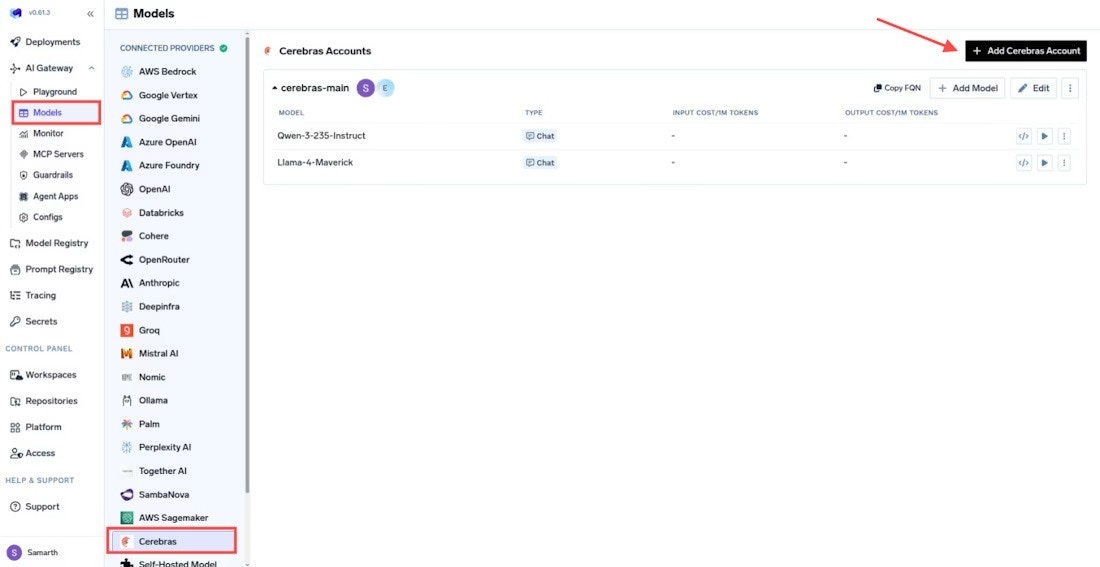 This opens the Cerebras configuration panel where you'll add your account and models.
Click **Add Cerebras Account** to configure your Cerebras API credentials:
This opens the Cerebras configuration panel where you'll add your account and models.
Click **Add Cerebras Account** to configure your Cerebras API credentials:
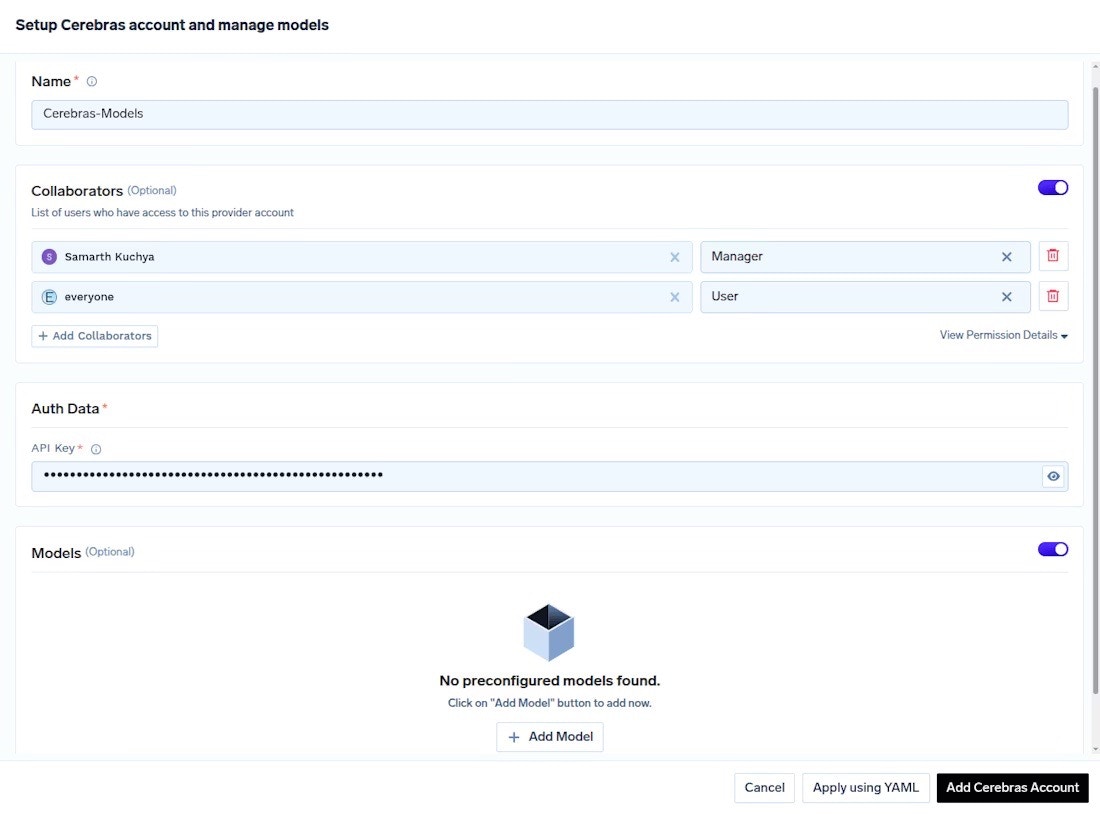 1. Click the **Add Cerebras Account** button
2. Enter your **Account Name** (e.g., "Production" or "Development")
3. Enter your **Cerebras API Key** from the prerequisites step
4. Optionally add **Collaborators** who should have access
5. Click **Save**
You can configure multiple Cerebras accounts with different access controls. This is useful for separating production and development environments or managing different teams. See [Access Control](https://www.truefoundry.com/docs/ai-gateway/gateway-access-control) for more details.
Click **+ Add Model** to add Cerebras models to your gateway. Unlike other providers, you need to get the Model ID directly from the Cerebras documentation.
To add a model:
1. Click **+ Add Model**
2. Enter the **Model ID** exactly as shown in the [Cerebras Models documentation](https://inference-docs.cerebras.ai/models?utm_source=3pi_truefoundry\&utm_campaign=integrations)
3. Configure any model-specific settings like rate limits or access controls
4. Click **Save** to activate the model
For Cerebras, you don't select from a dropdown list. Instead, copy the exact Model ID from the [Cerebras docs](https://inference-docs.cerebras.ai/models/overview) and paste it in the Model ID field.
After configuring your models, TrueFoundry will provide you with gateway credentials. These credentials authenticate your application to the TrueFoundry gateway, which then routes requests to Cerebras.
Find your credentials in the AI Gateway settings:
1. Navigate to **AI Gateway** > **API Credentials**
2. Copy your **Gateway Base URL** (e.g., `https://gateway.truefoundry.ai`)
3. Copy your **Gateway API Key** (a JWT token)
Keep these credentials secure - they provide access to all models configured in your gateway.
Install the OpenAI Python SDK, which is compatible with Cerebras through TrueFoundry's OpenAI-compatible API:
```bash theme={null}
pip install openai python-dotenv
```
The `python-dotenv` package helps manage environment variables securely.
Create a `.env` file in your project directory to store your TrueFoundry credentials securely:
```bash theme={null}
TRUEFOUNDRY_API_KEY=your-truefoundry-gateway-key-here
TRUEFOUNDRY_BASE_URL=https://gateway.truefoundry.ai
```
Replace the placeholder values with your actual credentials from Step 4.
Never commit your `.env` file to version control. Add it to your `.gitignore` file to keep your credentials secure.
Set up the OpenAI client to route requests through TrueFoundry's gateway. The gateway intercepts your requests, captures observability data, and forwards them to Cerebras.
```python Python theme={null}
import os
from openai import OpenAI
from dotenv import load_dotenv
# Load environment variables
load_dotenv()
# Initialize client with TrueFoundry gateway
client = OpenAI(
api_key=os.getenv("TRUEFOUNDRY_API_KEY"),
base_url=os.getenv("TRUEFOUNDRY_BASE_URL"),
default_headers={
"X-Cerebras-3rd-Party-Integration": "TrueFoundry"
}
)
```
```bash cURL theme={null}
curl "$TRUEFOUNDRY_BASE_URL/chat/completions" \
-H "Content-Type: application/json" \
-H "Authorization: Bearer $TRUEFOUNDRY_API_KEY" \
-H "X-Cerebras-3rd-Party-Integration: Foundry" \
-d '{
"model": "cbrs/gpt-oss-120b",
"messages": [
{"role": "user", "content": "Hello!"}
]
}'
```
The `base_url` parameter routes all requests through TrueFoundry's gateway, which then forwards them to Cerebras while collecting metrics and logs.
Now you can make requests to Cerebras models through TrueFoundry. The gateway will automatically track this request in your analytics dashboard.
```python Python theme={null}
import os
from openai import OpenAI
from dotenv import load_dotenv
load_dotenv()
client = OpenAI(
api_key=os.getenv("TRUEFOUNDRY_API_KEY"),
base_url=os.getenv("TRUEFOUNDRY_BASE_URL"),
default_headers={
"X-Cerebras-3rd-Party-Integration": "TrueFoundry"
}
)
# Make a chat completion request
response = client.chat.completions.create(
model="cbrs/gpt-oss-120b",
messages=[
{"role": "system", "content": "You are a helpful assistant."},
{"role": "user", "content": "Explain quantum computing in simple terms."}
],
max_tokens=500,
temperature=0.7
)
print(response.choices[0].message.content)
```
```bash cURL theme={null}
curl "$TRUEFOUNDRY_BASE_URL/chat/completions" \
-H "Content-Type: application/json" \
-H "Authorization: Bearer $TRUEFOUNDRY_API_KEY" \
-H "X-Cerebras-3rd-Party-Integration: Foundry" \
-d '{
"model": "cbrs/gpt-oss-120b",
"messages": [
{"role": "system", "content": "You are a helpful assistant."},
{"role": "user", "content": "Explain quantum computing in simple terms."}
],
"max_tokens": 500,
"temperature": 0.7
}'
```
Use the format `cbrs/MODEL_NAME` when specifying models through TrueFoundry (e.g., `cbrs/gpt-oss-120b`). This prefix tells the gateway to route the request to your configured Cerebras account.
## Advanced Features
### Streaming Responses
TrueFoundry supports streaming responses from Cerebras models, allowing you to process tokens as they're generated. This is ideal for building responsive chat interfaces or processing long-form content.
```python Python theme={null}
import os
from openai import OpenAI
from dotenv import load_dotenv
load_dotenv()
client = OpenAI(
api_key=os.getenv("TRUEFOUNDRY_API_KEY"),
base_url=os.getenv("TRUEFOUNDRY_BASE_URL"),
default_headers={
"X-Cerebras-3rd-Party-Integration": "TrueFoundry"
}
)
# Stream the response
stream = client.chat.completions.create(
model="cbrs/gpt-oss-120b",
messages=[
{"role": "user", "content": "Write a short story about a robot."}
],
stream=True
)
for chunk in stream:
if chunk.choices[0].delta.content is not None:
print(chunk.choices[0].delta.content, end="")
```
### Custom Metadata and Tagging
Add custom metadata to your requests for better tracking and analytics. TrueFoundry captures these headers and makes them available in your analytics dashboard for filtering and analysis.
```python Python theme={null}
import os
from openai import OpenAI
from dotenv import load_dotenv
load_dotenv()
client = OpenAI(
api_key=os.getenv("TRUEFOUNDRY_API_KEY"),
base_url=os.getenv("TRUEFOUNDRY_BASE_URL"),
default_headers={
"X-Cerebras-3rd-Party-Integration": "TrueFoundry",
"X-TrueFoundry-User-ID": "user-123",
"X-TrueFoundry-Session-ID": "session-456",
"X-TrueFoundry-Environment": "production"
}
)
response = client.chat.completions.create(
model="cbrs/gpt-oss-120b",
messages=[
{"role": "user", "content": "Summarize this article..."}
]
)
```
These custom headers will appear in your TrueFoundry analytics dashboard, making it easy to filter and analyze requests by user, session, or environment.
### Rate Limiting and Budget Controls
TrueFoundry allows you to set rate limits and budget controls directly in the dashboard to prevent unexpected costs and manage usage across your organization.
To configure rate limits:
1. Navigate to **AI Gateway** > **Rate Limiting**
2. Configure limits per user, API key, or model
3. Set daily or monthly budget caps to prevent unexpected costs
4. Configure alerts to notify you when limits are approached
Learn more in the [TrueFoundry Rate Limiting documentation](https://truefoundry.com/docs/ai-gateway/rate-limiting?utm_source=cerebras_docs\&utm_medium=integration_page\&utm_campaign=3pi_truefoundry).
### Virtual Models
Create virtual models that combine multiple Cerebras models with custom routing logic, fallback strategies, and load balancing. This allows you to optimize for cost, performance, or availability.
Learn more in the [TrueFoundry Virtual Models documentation](https://truefoundry.com/docs/ai-gateway/virtual-models?utm_source=cerebras_docs\&utm_medium=integration_page\&utm_campaign=3pi_truefoundry).
## Monitoring and Analytics
### View Request Logs
Access detailed logs for all requests through the TrueFoundry dashboard. Each log entry includes the full request and response payload, latency metrics, token usage, and any custom metadata you've added.
To view logs:
1. Go to **AI Gateway** > **Observability** > **Request Logging**
2. Filter by model, user, time range, or custom metadata
3. View request and response payloads, latencies, and errors
4. Export logs for further analysis or compliance requirements
### Cost Tracking
Monitor your Cerebras spending in real-time with TrueFoundry's cost tracking dashboard. View costs broken down by model, user, team, or any custom dimension you've configured.
To access cost tracking:
1. Navigate to **AI Gateway** > **Cost Tracking**
2. View costs broken down by model, user, or time period
3. Set up alerts for budget thresholds
4. Export cost reports for billing or analysis
### Analytics Dashboard
Visualize usage patterns and performance metrics across your organization with TrueFoundry's analytics dashboard. Track key metrics like request volume, latency percentiles, error rates, and token usage.
Key metrics available:
* **Request Volume** - Total requests over time, broken down by model
* **Latency** - P50, P95, and P99 latency percentiles
* **Error Rates** - Track errors by type and model
* **Token Usage** - Monitor input and output tokens across models
* **Cost Trends** - Visualize spending patterns over time
### Export Metrics
TrueFoundry supports exporting metrics to external monitoring tools for integration with your existing observability stack.
Supported export formats:
* **OpenTelemetry** - Export traces and metrics to your observability platform
* **Prometheus** - Scrape metrics for custom dashboards
* **Grafana** - Visualize performance and cost data
Learn more in the [TrueFoundry Observability documentation](https://truefoundry.com/docs/ai-gateway/observability?utm_source=cerebras_docs\&utm_medium=integration_page\&utm_campaign=3pi_truefoundry).
## Troubleshooting
If you receive authentication errors when making requests:
**Check your TrueFoundry API key:**
* Verify the key is correct in your `.env` file
* Ensure there are no extra spaces or newlines
* Confirm the key hasn't been revoked in the TrueFoundry dashboard
**Verify Cerebras account configuration:**
* Go to **AI Gateway** > **Models** > **Cerebras**
* Ensure your Cerebras account is properly configured
* Check that your Cerebras API key is valid and active
**Check access permissions:**
* Verify your TrueFoundry account has access to the Cerebras models you're trying to use
* Ensure you're using the correct account if you have multiple configured
If you see "model not found" errors:
**Verify model configuration:**
* Check that you've added the specific Cerebras model in the TrueFoundry dashboard
* Go to **AI Gateway** > **Models** > **Cerebras** and confirm the model is listed
**Check model name format:**
* Use the format `cbrs/MODEL_NAME` (e.g., `cbrs/gpt-oss-120b`)
* Ensure the Model ID matches exactly what's in the [Cerebras documentation](https://inference-docs.cerebras.ai/models?utm_source=3pi_truefoundry\&utm_campaign=integrations)
**Available models:**
* `cbrs/gpt-oss-120b`
* `cbrs/gpt-oss-120b`
If you're hitting rate limits:
**Check your rate limit configuration:**
* Navigate to **AI Gateway** > **Rate Limiting**
* Review your current limits and usage
* Adjust limits for your use case or upgrade your TrueFoundry plan
**Implement retry logic:**
* Add exponential backoff in your application code
* Use the `Retry-After` header to determine when to retry
* Consider implementing request queuing for high-volume applications
**Optimize your usage:**
* Batch requests where possible
* Use caching for repeated queries
* Consider using smaller models for simpler tasks
If you're experiencing higher latency than expected:
**Check gateway region:**
* Ensure the TrueFoundry gateway region is close to your application
* Contact TrueFoundry support to discuss multi-region deployment options
**Review request logs:**
* Go to **AI Gateway** > **Observability** > **Request Logging**
* Identify bottlenecks in request processing
* Check for network issues or timeouts
**Optimize your requests:**
* Use streaming for long responses to reduce perceived latency
* Consider using TrueFoundry's caching features for repeated queries
* Reduce `max_tokens` if you're generating unnecessarily long responses
**Monitor performance:**
* Set up alerts for latency thresholds
* Track P95 and P99 latencies in the analytics dashboard
* Compare latency across different models to find the best fit
If you're not seeing expected metrics or logs in the dashboard:
**Verify integration header:**
* Ensure you're including the `X-Cerebras-3rd-Party-Integration: Foundry` header
* Check that the header is properly formatted with no typos
**Check data retention:**
* Review your TrueFoundry plan's data retention policy
* Older logs may have been archived or deleted
**Verify custom metadata:**
* Ensure custom headers are properly formatted (e.g., `X-TrueFoundry-User-ID`)
* Check that metadata is being sent with each request
**Contact support:**
* If issues persist, contact [TrueFoundry support](https://truefoundry.com/support?utm_source=cerebras_docs\&utm_medium=integration_page\&utm_campaign=3pi_truefoundry) with example request IDs
For additional support, contact [TrueFoundry support](https://truefoundry.com/support?utm_source=cerebras_docs\&utm_medium=integration_page\&utm_campaign=3pi_truefoundry) or visit their [documentation](https://truefoundry.com/docs?utm_source=cerebras_docs\&utm_medium=integration_page\&utm_campaign=3pi_truefoundry).
## Next Steps
Discover TrueFoundry's full capabilities including virtual models, guardrails, and advanced routing
Configure rate limits and budget controls to manage costs and prevent unexpected usage
Add custom metadata to requests for better tracking and analytics
Explore Cerebras models to find the best fit for your use case
Configure alerts for cost thresholds, error rates, and performance issues
Reduce costs and latency by caching repeated queries
1. Click the **Add Cerebras Account** button
2. Enter your **Account Name** (e.g., "Production" or "Development")
3. Enter your **Cerebras API Key** from the prerequisites step
4. Optionally add **Collaborators** who should have access
5. Click **Save**
You can configure multiple Cerebras accounts with different access controls. This is useful for separating production and development environments or managing different teams. See [Access Control](https://www.truefoundry.com/docs/ai-gateway/gateway-access-control) for more details.
Click **+ Add Model** to add Cerebras models to your gateway. Unlike other providers, you need to get the Model ID directly from the Cerebras documentation.
To add a model:
1. Click **+ Add Model**
2. Enter the **Model ID** exactly as shown in the [Cerebras Models documentation](https://inference-docs.cerebras.ai/models?utm_source=3pi_truefoundry\&utm_campaign=integrations)
3. Configure any model-specific settings like rate limits or access controls
4. Click **Save** to activate the model
For Cerebras, you don't select from a dropdown list. Instead, copy the exact Model ID from the [Cerebras docs](https://inference-docs.cerebras.ai/models/overview) and paste it in the Model ID field.
After configuring your models, TrueFoundry will provide you with gateway credentials. These credentials authenticate your application to the TrueFoundry gateway, which then routes requests to Cerebras.
Find your credentials in the AI Gateway settings:
1. Navigate to **AI Gateway** > **API Credentials**
2. Copy your **Gateway Base URL** (e.g., `https://gateway.truefoundry.ai`)
3. Copy your **Gateway API Key** (a JWT token)
Keep these credentials secure - they provide access to all models configured in your gateway.
Install the OpenAI Python SDK, which is compatible with Cerebras through TrueFoundry's OpenAI-compatible API:
```bash theme={null}
pip install openai python-dotenv
```
The `python-dotenv` package helps manage environment variables securely.
Create a `.env` file in your project directory to store your TrueFoundry credentials securely:
```bash theme={null}
TRUEFOUNDRY_API_KEY=your-truefoundry-gateway-key-here
TRUEFOUNDRY_BASE_URL=https://gateway.truefoundry.ai
```
Replace the placeholder values with your actual credentials from Step 4.
Never commit your `.env` file to version control. Add it to your `.gitignore` file to keep your credentials secure.
Set up the OpenAI client to route requests through TrueFoundry's gateway. The gateway intercepts your requests, captures observability data, and forwards them to Cerebras.
```python Python theme={null}
import os
from openai import OpenAI
from dotenv import load_dotenv
# Load environment variables
load_dotenv()
# Initialize client with TrueFoundry gateway
client = OpenAI(
api_key=os.getenv("TRUEFOUNDRY_API_KEY"),
base_url=os.getenv("TRUEFOUNDRY_BASE_URL"),
default_headers={
"X-Cerebras-3rd-Party-Integration": "TrueFoundry"
}
)
```
```bash cURL theme={null}
curl "$TRUEFOUNDRY_BASE_URL/chat/completions" \
-H "Content-Type: application/json" \
-H "Authorization: Bearer $TRUEFOUNDRY_API_KEY" \
-H "X-Cerebras-3rd-Party-Integration: Foundry" \
-d '{
"model": "cbrs/gpt-oss-120b",
"messages": [
{"role": "user", "content": "Hello!"}
]
}'
```
The `base_url` parameter routes all requests through TrueFoundry's gateway, which then forwards them to Cerebras while collecting metrics and logs.
Now you can make requests to Cerebras models through TrueFoundry. The gateway will automatically track this request in your analytics dashboard.
```python Python theme={null}
import os
from openai import OpenAI
from dotenv import load_dotenv
load_dotenv()
client = OpenAI(
api_key=os.getenv("TRUEFOUNDRY_API_KEY"),
base_url=os.getenv("TRUEFOUNDRY_BASE_URL"),
default_headers={
"X-Cerebras-3rd-Party-Integration": "TrueFoundry"
}
)
# Make a chat completion request
response = client.chat.completions.create(
model="cbrs/gpt-oss-120b",
messages=[
{"role": "system", "content": "You are a helpful assistant."},
{"role": "user", "content": "Explain quantum computing in simple terms."}
],
max_tokens=500,
temperature=0.7
)
print(response.choices[0].message.content)
```
```bash cURL theme={null}
curl "$TRUEFOUNDRY_BASE_URL/chat/completions" \
-H "Content-Type: application/json" \
-H "Authorization: Bearer $TRUEFOUNDRY_API_KEY" \
-H "X-Cerebras-3rd-Party-Integration: Foundry" \
-d '{
"model": "cbrs/gpt-oss-120b",
"messages": [
{"role": "system", "content": "You are a helpful assistant."},
{"role": "user", "content": "Explain quantum computing in simple terms."}
],
"max_tokens": 500,
"temperature": 0.7
}'
```
Use the format `cbrs/MODEL_NAME` when specifying models through TrueFoundry (e.g., `cbrs/gpt-oss-120b`). This prefix tells the gateway to route the request to your configured Cerebras account.
## Advanced Features
### Streaming Responses
TrueFoundry supports streaming responses from Cerebras models, allowing you to process tokens as they're generated. This is ideal for building responsive chat interfaces or processing long-form content.
```python Python theme={null}
import os
from openai import OpenAI
from dotenv import load_dotenv
load_dotenv()
client = OpenAI(
api_key=os.getenv("TRUEFOUNDRY_API_KEY"),
base_url=os.getenv("TRUEFOUNDRY_BASE_URL"),
default_headers={
"X-Cerebras-3rd-Party-Integration": "TrueFoundry"
}
)
# Stream the response
stream = client.chat.completions.create(
model="cbrs/gpt-oss-120b",
messages=[
{"role": "user", "content": "Write a short story about a robot."}
],
stream=True
)
for chunk in stream:
if chunk.choices[0].delta.content is not None:
print(chunk.choices[0].delta.content, end="")
```
### Custom Metadata and Tagging
Add custom metadata to your requests for better tracking and analytics. TrueFoundry captures these headers and makes them available in your analytics dashboard for filtering and analysis.
```python Python theme={null}
import os
from openai import OpenAI
from dotenv import load_dotenv
load_dotenv()
client = OpenAI(
api_key=os.getenv("TRUEFOUNDRY_API_KEY"),
base_url=os.getenv("TRUEFOUNDRY_BASE_URL"),
default_headers={
"X-Cerebras-3rd-Party-Integration": "TrueFoundry",
"X-TrueFoundry-User-ID": "user-123",
"X-TrueFoundry-Session-ID": "session-456",
"X-TrueFoundry-Environment": "production"
}
)
response = client.chat.completions.create(
model="cbrs/gpt-oss-120b",
messages=[
{"role": "user", "content": "Summarize this article..."}
]
)
```
These custom headers will appear in your TrueFoundry analytics dashboard, making it easy to filter and analyze requests by user, session, or environment.
### Rate Limiting and Budget Controls
TrueFoundry allows you to set rate limits and budget controls directly in the dashboard to prevent unexpected costs and manage usage across your organization.
To configure rate limits:
1. Navigate to **AI Gateway** > **Rate Limiting**
2. Configure limits per user, API key, or model
3. Set daily or monthly budget caps to prevent unexpected costs
4. Configure alerts to notify you when limits are approached
Learn more in the [TrueFoundry Rate Limiting documentation](https://truefoundry.com/docs/ai-gateway/rate-limiting?utm_source=cerebras_docs\&utm_medium=integration_page\&utm_campaign=3pi_truefoundry).
### Virtual Models
Create virtual models that combine multiple Cerebras models with custom routing logic, fallback strategies, and load balancing. This allows you to optimize for cost, performance, or availability.
Learn more in the [TrueFoundry Virtual Models documentation](https://truefoundry.com/docs/ai-gateway/virtual-models?utm_source=cerebras_docs\&utm_medium=integration_page\&utm_campaign=3pi_truefoundry).
## Monitoring and Analytics
### View Request Logs
Access detailed logs for all requests through the TrueFoundry dashboard. Each log entry includes the full request and response payload, latency metrics, token usage, and any custom metadata you've added.
To view logs:
1. Go to **AI Gateway** > **Observability** > **Request Logging**
2. Filter by model, user, time range, or custom metadata
3. View request and response payloads, latencies, and errors
4. Export logs for further analysis or compliance requirements
### Cost Tracking
Monitor your Cerebras spending in real-time with TrueFoundry's cost tracking dashboard. View costs broken down by model, user, team, or any custom dimension you've configured.
To access cost tracking:
1. Navigate to **AI Gateway** > **Cost Tracking**
2. View costs broken down by model, user, or time period
3. Set up alerts for budget thresholds
4. Export cost reports for billing or analysis
### Analytics Dashboard
Visualize usage patterns and performance metrics across your organization with TrueFoundry's analytics dashboard. Track key metrics like request volume, latency percentiles, error rates, and token usage.
Key metrics available:
* **Request Volume** - Total requests over time, broken down by model
* **Latency** - P50, P95, and P99 latency percentiles
* **Error Rates** - Track errors by type and model
* **Token Usage** - Monitor input and output tokens across models
* **Cost Trends** - Visualize spending patterns over time
### Export Metrics
TrueFoundry supports exporting metrics to external monitoring tools for integration with your existing observability stack.
Supported export formats:
* **OpenTelemetry** - Export traces and metrics to your observability platform
* **Prometheus** - Scrape metrics for custom dashboards
* **Grafana** - Visualize performance and cost data
Learn more in the [TrueFoundry Observability documentation](https://truefoundry.com/docs/ai-gateway/observability?utm_source=cerebras_docs\&utm_medium=integration_page\&utm_campaign=3pi_truefoundry).
## Troubleshooting
If you receive authentication errors when making requests:
**Check your TrueFoundry API key:**
* Verify the key is correct in your `.env` file
* Ensure there are no extra spaces or newlines
* Confirm the key hasn't been revoked in the TrueFoundry dashboard
**Verify Cerebras account configuration:**
* Go to **AI Gateway** > **Models** > **Cerebras**
* Ensure your Cerebras account is properly configured
* Check that your Cerebras API key is valid and active
**Check access permissions:**
* Verify your TrueFoundry account has access to the Cerebras models you're trying to use
* Ensure you're using the correct account if you have multiple configured
If you see "model not found" errors:
**Verify model configuration:**
* Check that you've added the specific Cerebras model in the TrueFoundry dashboard
* Go to **AI Gateway** > **Models** > **Cerebras** and confirm the model is listed
**Check model name format:**
* Use the format `cbrs/MODEL_NAME` (e.g., `cbrs/gpt-oss-120b`)
* Ensure the Model ID matches exactly what's in the [Cerebras documentation](https://inference-docs.cerebras.ai/models?utm_source=3pi_truefoundry\&utm_campaign=integrations)
**Available models:**
* `cbrs/gpt-oss-120b`
* `cbrs/gpt-oss-120b`
If you're hitting rate limits:
**Check your rate limit configuration:**
* Navigate to **AI Gateway** > **Rate Limiting**
* Review your current limits and usage
* Adjust limits for your use case or upgrade your TrueFoundry plan
**Implement retry logic:**
* Add exponential backoff in your application code
* Use the `Retry-After` header to determine when to retry
* Consider implementing request queuing for high-volume applications
**Optimize your usage:**
* Batch requests where possible
* Use caching for repeated queries
* Consider using smaller models for simpler tasks
If you're experiencing higher latency than expected:
**Check gateway region:**
* Ensure the TrueFoundry gateway region is close to your application
* Contact TrueFoundry support to discuss multi-region deployment options
**Review request logs:**
* Go to **AI Gateway** > **Observability** > **Request Logging**
* Identify bottlenecks in request processing
* Check for network issues or timeouts
**Optimize your requests:**
* Use streaming for long responses to reduce perceived latency
* Consider using TrueFoundry's caching features for repeated queries
* Reduce `max_tokens` if you're generating unnecessarily long responses
**Monitor performance:**
* Set up alerts for latency thresholds
* Track P95 and P99 latencies in the analytics dashboard
* Compare latency across different models to find the best fit
If you're not seeing expected metrics or logs in the dashboard:
**Verify integration header:**
* Ensure you're including the `X-Cerebras-3rd-Party-Integration: Foundry` header
* Check that the header is properly formatted with no typos
**Check data retention:**
* Review your TrueFoundry plan's data retention policy
* Older logs may have been archived or deleted
**Verify custom metadata:**
* Ensure custom headers are properly formatted (e.g., `X-TrueFoundry-User-ID`)
* Check that metadata is being sent with each request
**Contact support:**
* If issues persist, contact [TrueFoundry support](https://truefoundry.com/support?utm_source=cerebras_docs\&utm_medium=integration_page\&utm_campaign=3pi_truefoundry) with example request IDs
For additional support, contact [TrueFoundry support](https://truefoundry.com/support?utm_source=cerebras_docs\&utm_medium=integration_page\&utm_campaign=3pi_truefoundry) or visit their [documentation](https://truefoundry.com/docs?utm_source=cerebras_docs\&utm_medium=integration_page\&utm_campaign=3pi_truefoundry).
## Next Steps
Discover TrueFoundry's full capabilities including virtual models, guardrails, and advanced routing
Configure rate limits and budget controls to manage costs and prevent unexpected usage
Add custom metadata to requests for better tracking and analytics
Explore Cerebras models to find the best fit for your use case
Configure alerts for cost thresholds, error rates, and performance issues
Reduce costs and latency by caching repeated queries