> ## Documentation Index
> Fetch the complete documentation index at: https://inference-docs.cerebras.ai/llms.txt
> Use this file to discover all available pages before exploring further.
# Get Started with OpenCode
> Configure OpenCode to use Cerebras Inference for AI coding assistance.
[OpenCode](https://opencode.ai/?utm_source=cerebras\&utm_campaign=opencode) is a 100% open-source, terminal-focused AI coding assistant that runs multiple models and integrates deeply with developer tools for coding automation.
## Prerequisites
Before you begin, ensure you have a **Cerebras API Key**. Get an API key from the [Cerebras Cloud console](https://cloud.cerebras.ai/?utm_source=3pi_opencode\&utm_campaign=integrations).
Paid tier required. This integration is only available on paid Cerebras plans. Visit the [Cloud Console](https://cloud.cerebras.ai) to upgrade your plan.
## Configure OpenCode
Run the following:
```bash theme={null}
curl -fsSL https://opencode.ai/install | bash
```
After installation, reload your shell configuration so the `opencode` command is available in your current session:
```bash theme={null}
source ~/.zshrc
```
If you use bash, run `source ~/.bashrc` instead.
Run the following command, then select Cerebras from the dropdown menu:
```bash theme={null}
opencode auth login
```
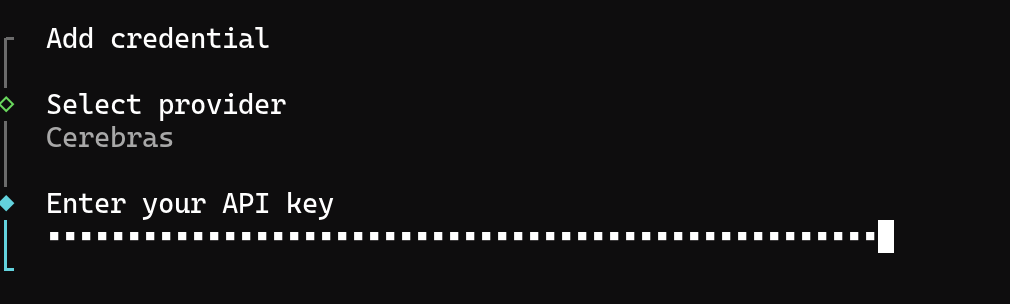
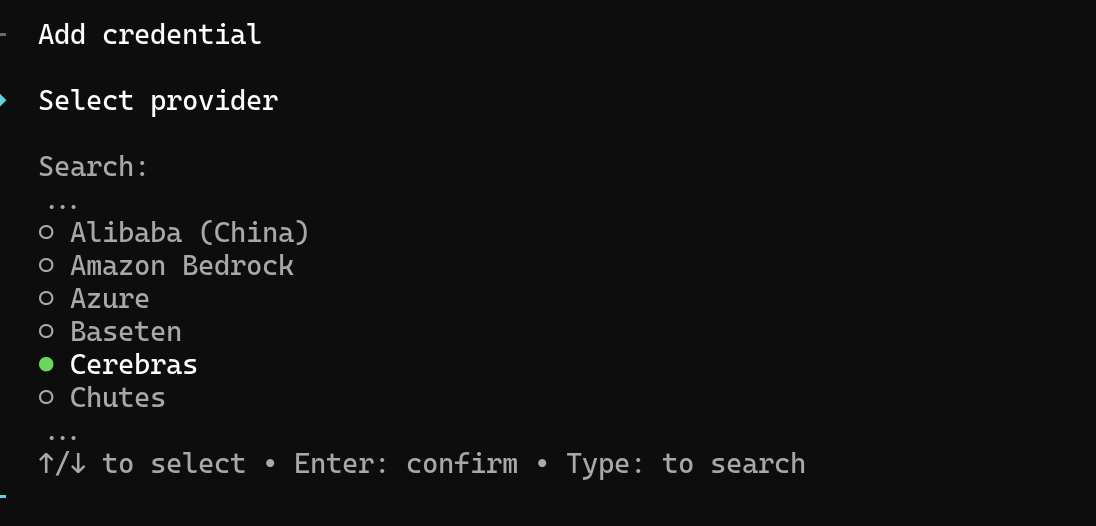 Enter your Cerebras API key:
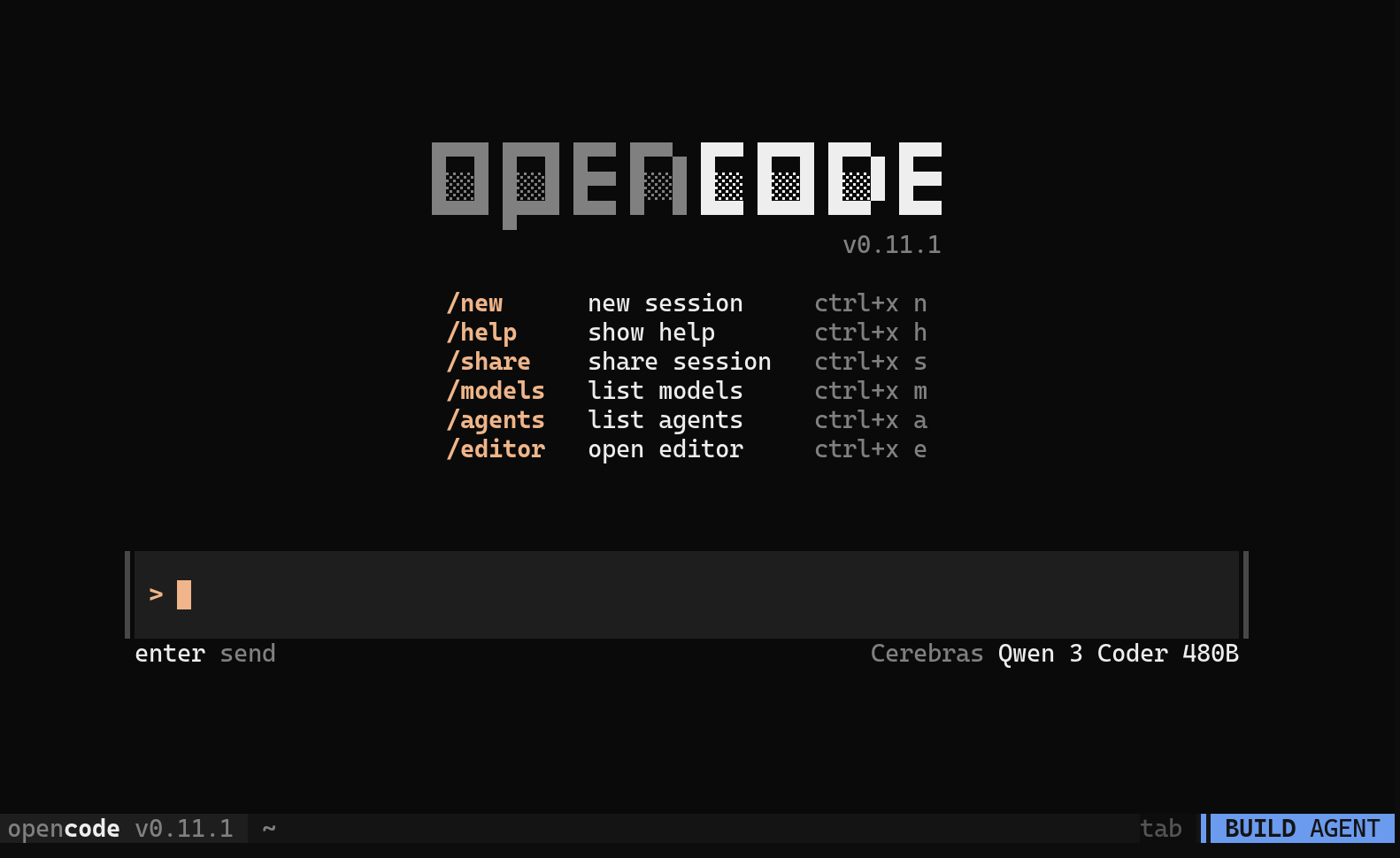
 Launch OpenCode in your project directory:
```bash theme={null}
opencode
```
Once inside the OpenCode interface, type `/models` and press Enter to open the model selector. Choose a Cerebras model from the list.
Launch OpenCode in your project directory:
```bash theme={null}
opencode
```
Once inside the OpenCode interface, type `/models` and press Enter to open the model selector. Choose a Cerebras model from the list.
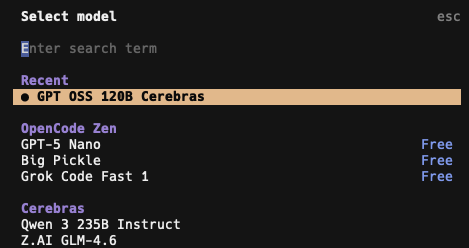 Now you can start coding!
 ## Available Models
OpenCode supports all Cerebras models for AI coding assistance:
| Model | Parameters | Best For |
| ---------------- | ---------- | ---------------------------------------------------------------- |
| **gpt-oss-120b** | 120B | Largest model for the most demanding tasks |
| **zai-glm-4.7** | 357B | Advanced 357B parameter model with strong reasoning capabilities |
You can switch between models at any time by typing `/models` inside the OpenCode interface.
## Available Models
OpenCode supports all Cerebras models for AI coding assistance:
| Model | Parameters | Best For |
| ---------------- | ---------- | ---------------------------------------------------------------- |
| **gpt-oss-120b** | 120B | Largest model for the most demanding tasks |
| **zai-glm-4.7** | 357B | Advanced 357B parameter model with strong reasoning capabilities |
You can switch between models at any time by typing `/models` inside the OpenCode interface.