> ## Documentation Index
> Fetch the complete documentation index at: https://inference-docs.cerebras.ai/llms.txt
> Use this file to discover all available pages before exploring further.
# Get Started with Cerebras for VS Code
> Configure Visual Studio Code to use Cerebras Inference for autonomous coding assistance.
The Cerebras integration for VS Code allows you to use Cerebras' fast inference for AI-powered coding assistance directly within the editor.
## Prerequisites
Before you begin, ensure you have:
* **Cerebras API Key** - Get a free API key [here](https://cloud.cerebras.ai/?utm_source=3pi_vscode\&utm_campaign=integrations).
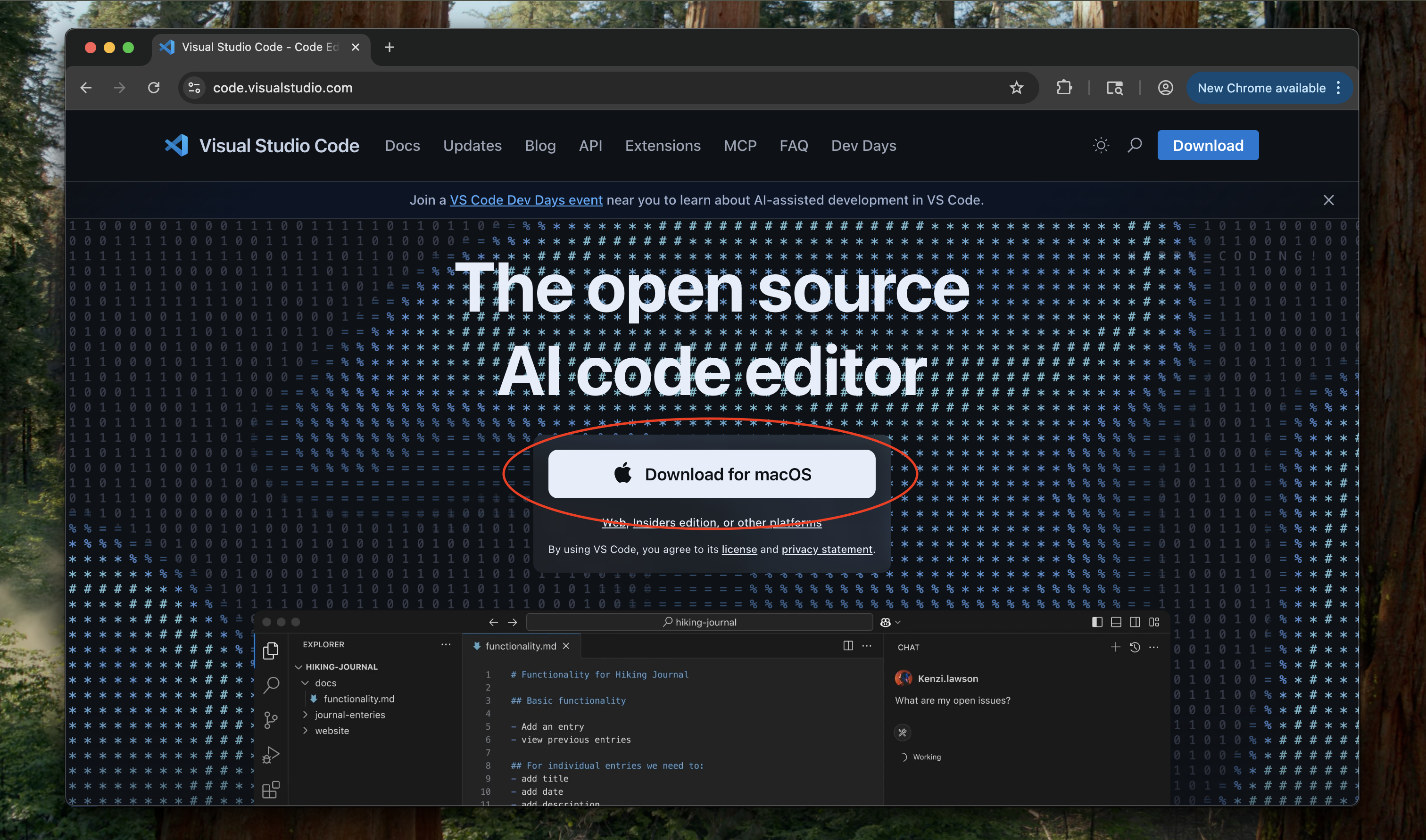
* **VS Code** - Download and install from [code.visualstudio.com](https://code.visualstudio.com/?utm_source=cerebras\&utm_campaign=vscode). If you already have VS Code installed, make sure you're on the latest version.
* **GitHub account** that is not enrolled in the GitHub Copilot Enterprise plan.
 ## Configure VS Code
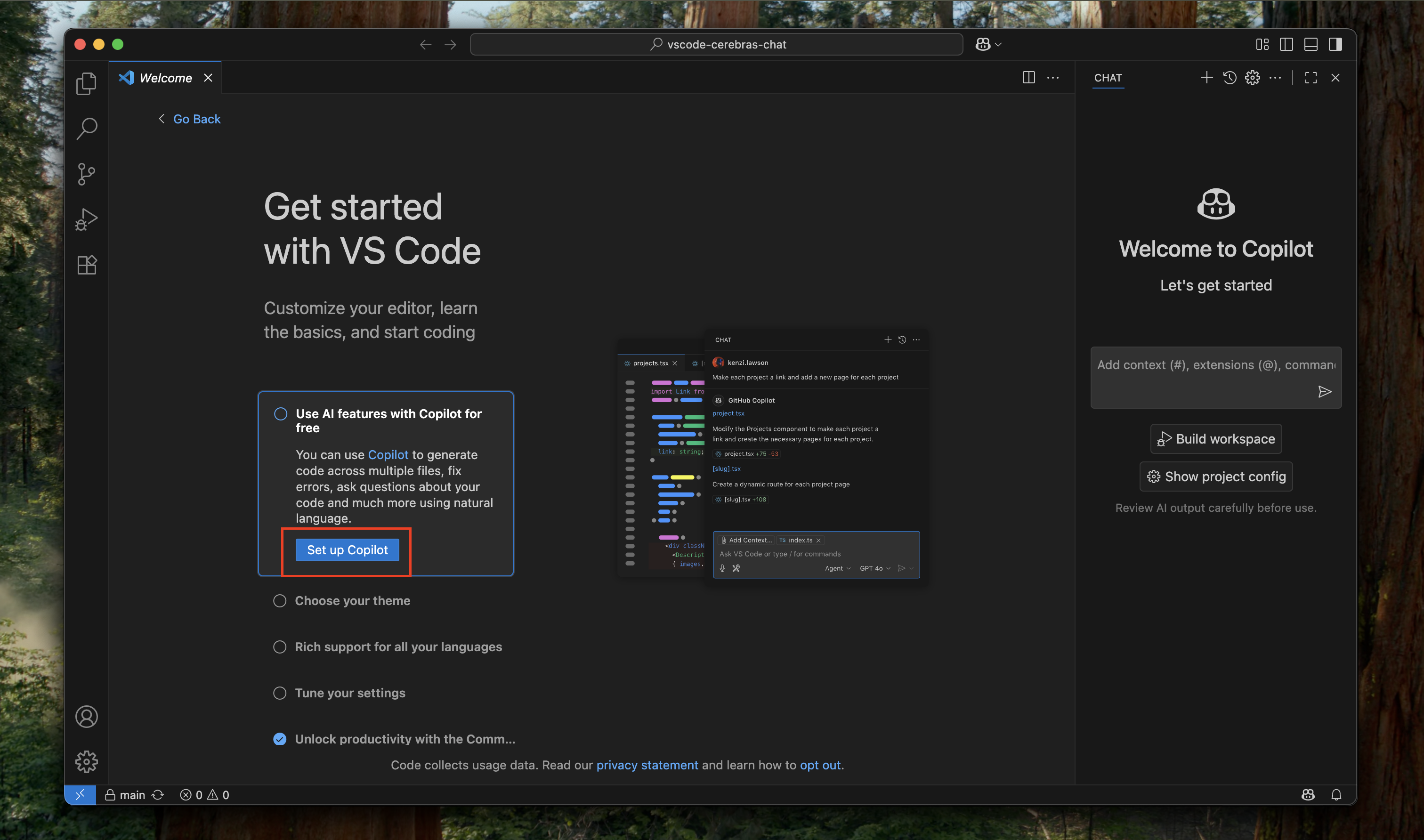
Follow the instructions in VS Code to sign up for a free GitHub Copilot account. You can also click on the Extensions tab on the left side and search for Copilot.
## Configure VS Code
Follow the instructions in VS Code to sign up for a free GitHub Copilot account. You can also click on the Extensions tab on the left side and search for Copilot.
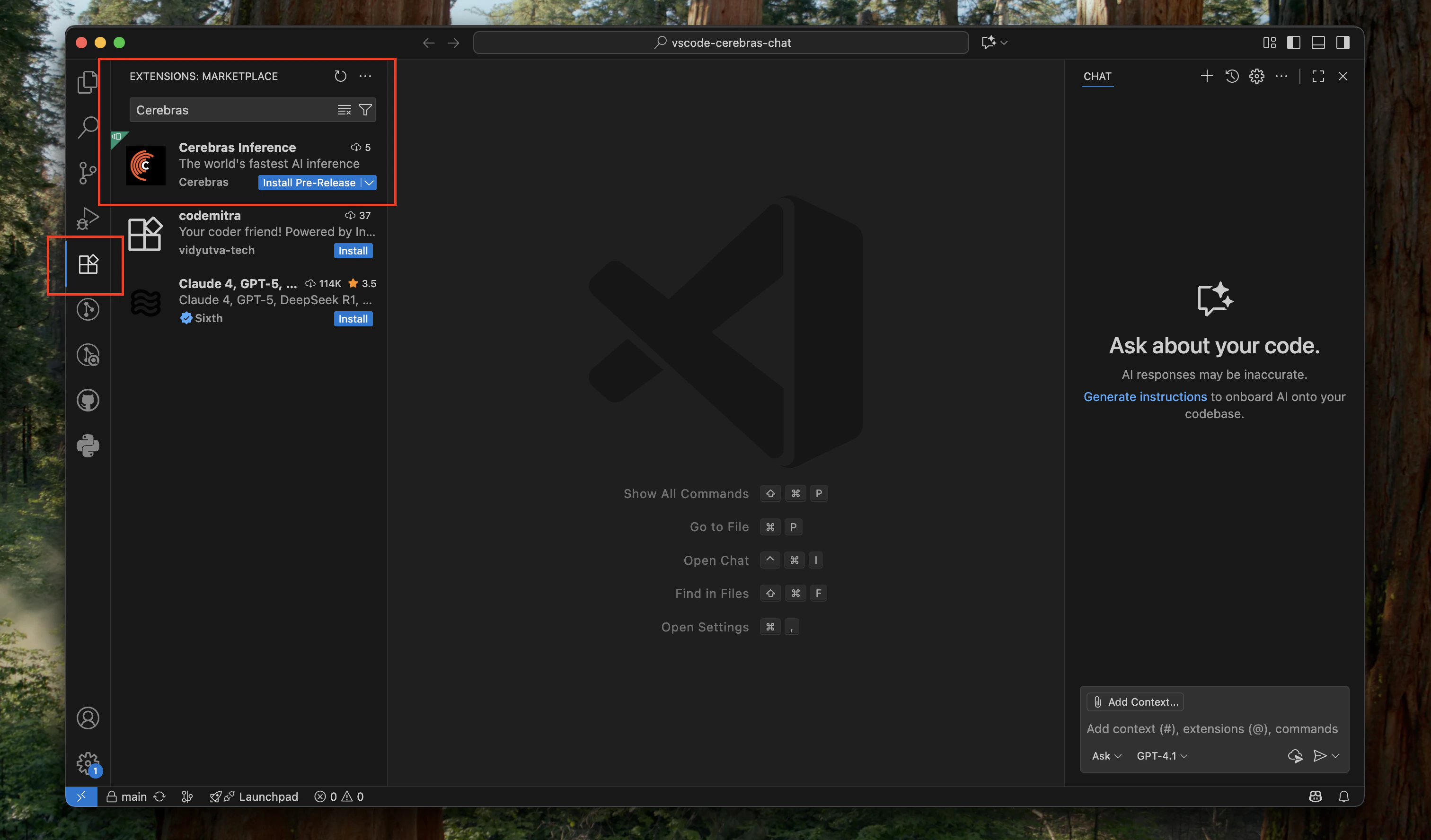
 Click on the Extensions tab on the left side. Search for "Cerebras" and click **Install**.
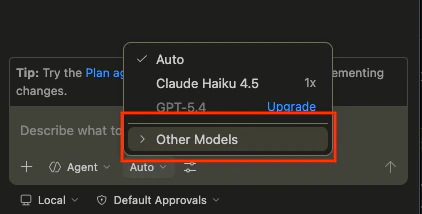
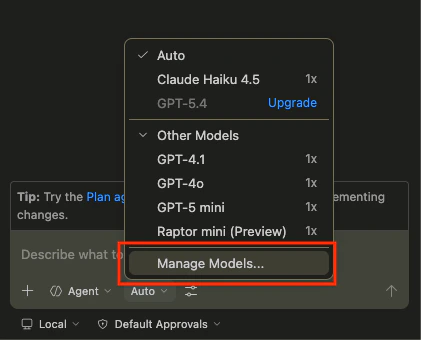
 At the bottom of the chat window, click on the model selection list (this is set to Auto by default), then click **Other Models**.
 Click on **Manage Models**.
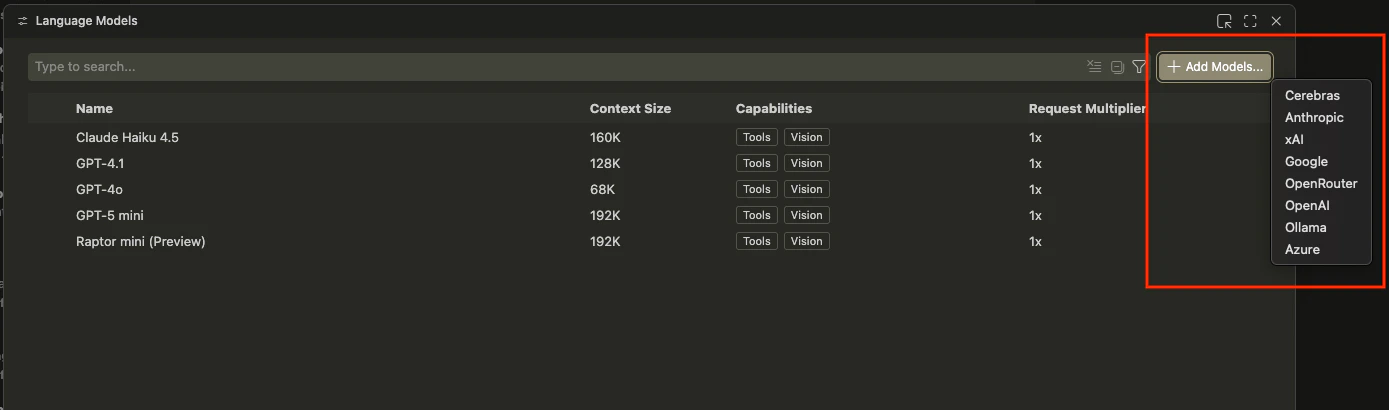
 Click **+Add Models** and choose Cerebras from the list.
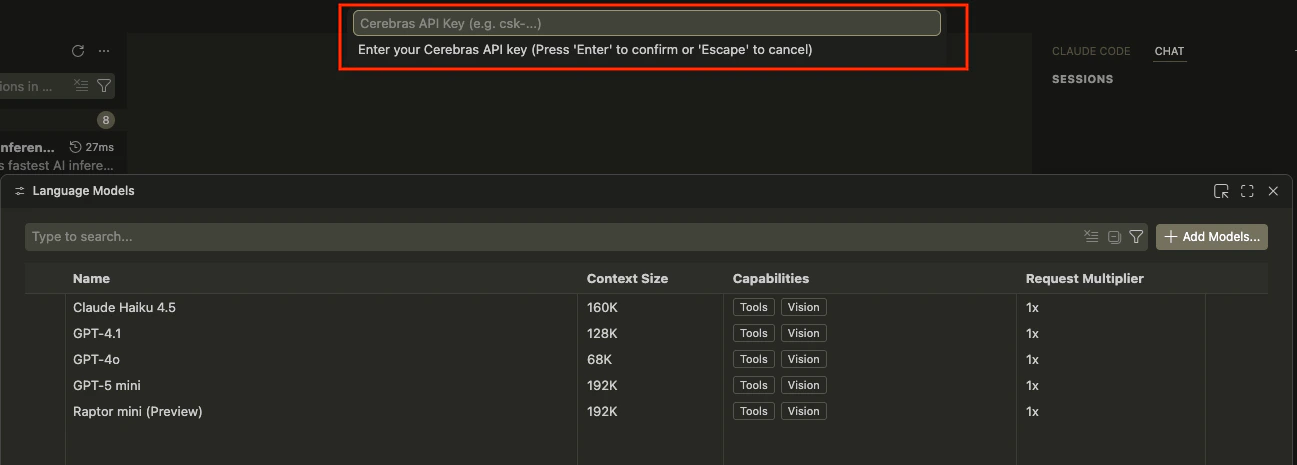
 Enter your Cerebras API key.
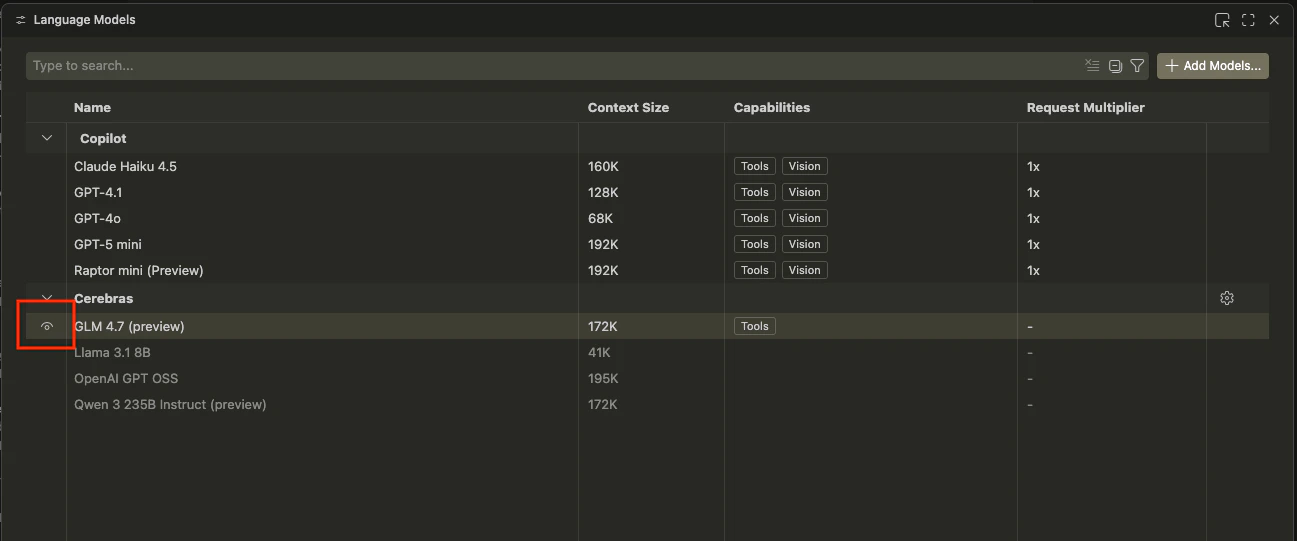
 Select which models to enable by clicking the eye icon next to each one.
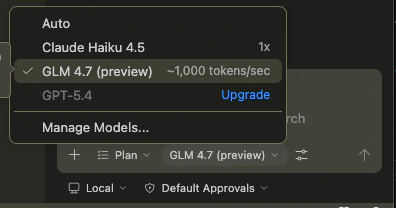 ## Available Models
The Cerebras VS Code extension currently supports Z.ai GLM 4.7. Additional models may be added in future releases.
## Available Models
The Cerebras VS Code extension currently supports Z.ai GLM 4.7. Additional models may be added in future releases.