

Prerequisites
Before you begin, ensure you have:- Cerebras API Key - Get a free API key here. This key will authenticate your requests to Cerebras Cloud.
- Dify Account - Visit Dify and create a free account or log in to your existing account.
- Basic understanding of AI workflows - Familiarity with concepts like prompts, chat completions, and AI agents is helpful but not required.
Install the Cerebras Plugin
Download the Cerebras Plugin
- Download the latest
cerebras.difypkgplugin file from the Cerebras Dify Plugin repository - Save the file to your computer
Install the Plugin in Dify
- Log in to your Dify account
- Navigate to Settings > Plugins
- Click “Install Plugin” or “Upload Plugin”
- Select the
cerebras.difypkgfile you downloaded - Wait for the installation to complete
Configure Your Cerebras API Key
- Click your user profile icon in the top-right corner
- Navigate to Settings > Model Providers (or Workspace Settings > Model Providers depending on your role)
-
Locate Cerebras in the list of available providers
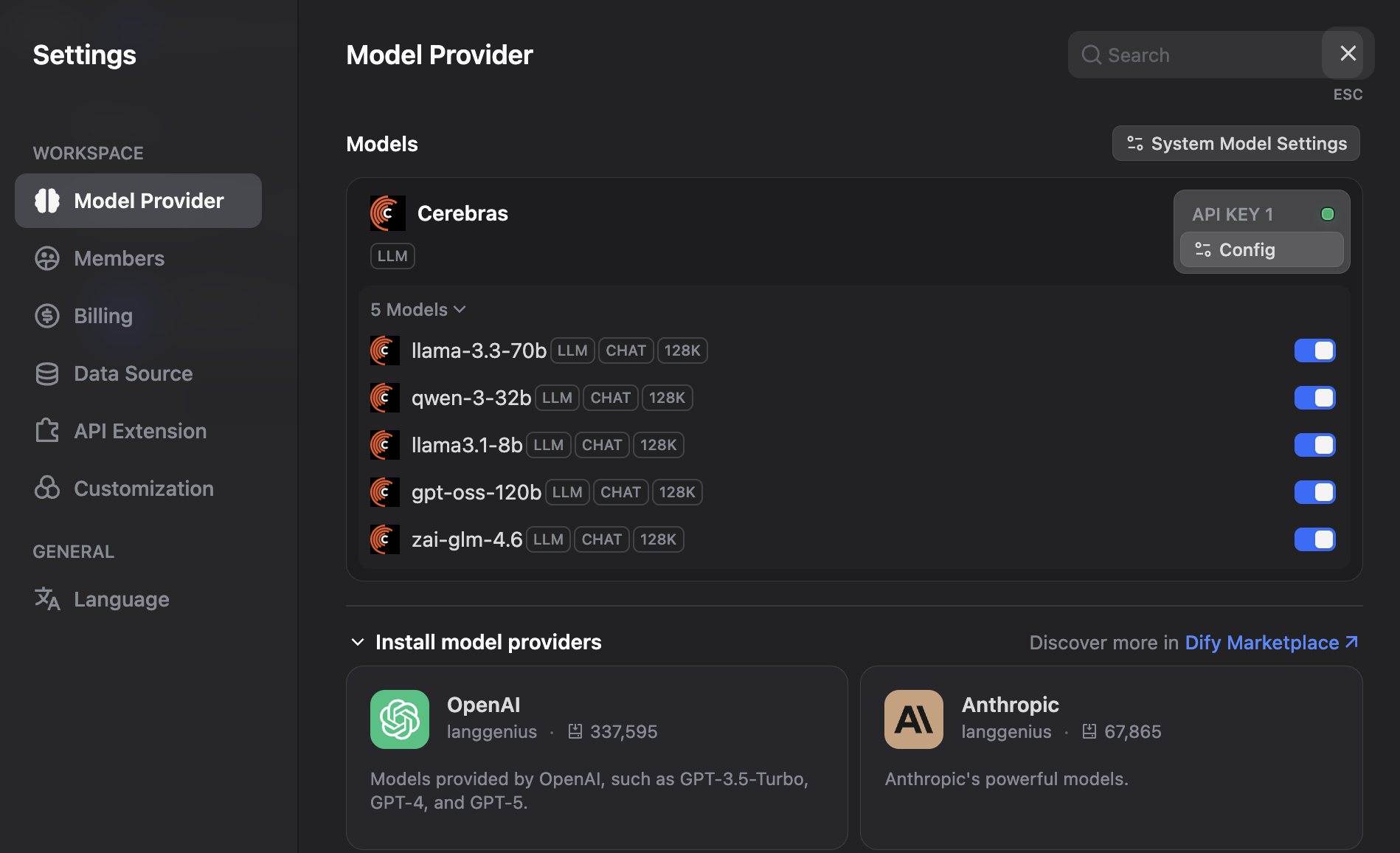
- Click Configure or the settings icon next to Cerebras
-
In the configuration modal:
- Enter an Authorization Name (e.g., “Cerebras Production”)
- Paste your Cerebras API Key (starts with
csk-) - Verify the API Base URL is
https://api.cerebras.ai/v1 - Select Test Connection to validate your credentials
- Click Save to store your configuration
Select Your Preferred Model
gpt-oss-120b for production workloads. Before you select a different model, compare the plugin’s bundled model list with the current Cerebras model catalog.Create Your First AI Application
- Navigate to the Studio or Applications section
- Click Create Application or New App
-
Choose your application type:
- Chatbot - For conversational AI applications
- Text Generator - For content creation and completion tasks
- Agent - For autonomous AI agents that can use tools
- Workflow - For complex multi-step AI processes
- In the model configuration section, select Cerebras as your provider
- Choose your preferred Cerebras model from the dropdown
- Configure your prompt, parameters, and other settings
- Click Save and start testing your application
Test Your Application
- Use the Debug and Preview panel on the right side of the screen
- Enter a test prompt or message
- Click Run or Send to see the response from your Cerebras model
- Adjust your prompts, parameters, or model selection as needed
- Iterate until you’re satisfied with the results
Deploy Your Application
- Click Publish or Deploy in the top-right corner
- Choose your deployment method:
- API - Get an API endpoint to integrate into your own applications
- Web App - Generate a shareable web interface
- Embed - Get an embed code for your website
- Configure access controls and rate limits if needed
- Copy your deployment URL or API credentials
Using Cerebras Models Programmatically
While Dify provides a no-code interface, you can also interact with your Dify applications programmatically using the Dify API. Here’s how to call a Dify application that uses Cerebras models. First, we need to install therequests package:
Streaming Responses
For real-time, responsive applications, you can use streaming mode to receive responses as they’re generated:Advanced Configuration
Adjusting Model Parameters
Adjusting Model Parameters
- Temperature - Controls randomness (0.0 = deterministic, 1.0 = creative)
- Max Tokens - Limits response length
- Top P - Controls diversity via nucleus sampling
- Frequency Penalty - Reduces repetition
- Presence Penalty - Encourages topic diversity
Using Multiple Models
Using Multiple Models
Enabling Streaming Responses
Enabling Streaming Responses
- In your Dify application settings, navigate to the response configuration
- Enable Streaming Mode
- Your users will see responses appear word-by-word in real-time
Monitoring Usage
Monitoring Usage
- Dify Dashboard - View application-level metrics and user interactions
- Cerebras Cloud Dashboard - Monitor API usage, costs, and performance at cloud.cerebras.ai
Next Steps
- Explore the Dify documentation for advanced features
- Review the current Cerebras models before selecting a model bundled with the plugin
- Review the Cerebras API reference for direct integration options
Troubleshooting
Invalid API Key Error
Invalid API Key Error
- Verify your API key is correct and starts with
csk- - Check that your key hasn’t expired in the Cerebras Cloud dashboard
- Ensure you’re copying the entire key without extra spaces
- Try regenerating your API key if the issue persists
Slow Response Times
Slow Response Times
- Check your internet connection and Dify’s status page
- Verify you’re using a Cerebras model (not a different provider)
- Reduce unnecessary prompt and output tokens
- Review your prompt complexity - simpler prompts generate faster
- Check the Cerebras Cloud status at status.cerebras.ai
Model Not Available
Model Not Available
- Refresh your browser and check again
- Verify the model is currently available in Cerebras Cloud
- Contact Dify support if the issue persists
- Try using an alternative model from the available list
Rate Limiting Issues
Rate Limiting Issues
- Check your current usage in the Cerebras Cloud dashboard
- Upgrade your Cerebras plan if you need higher limits
- Implement caching in your Dify application to reduce redundant calls
- Use Dify’s built-in rate limiting features to control usage
Application Not Responding
Application Not Responding
- Check the Dify application logs for errors
- Verify your Cerebras API key is still valid
- Ensure you haven’t exceeded your API quota
- Restart your application in the Dify dashboard
- Contact Dify support if the issue continues
FAQ
Can I use multiple AI providers in the same Dify application?
Can I use multiple AI providers in the same Dify application?
How much does it cost to use Cerebras with Dify?
How much does it cost to use Cerebras with Dify?
Can I switch models after deploying my application?
Can I switch models after deploying my application?
Does Dify support streaming responses from Cerebras?
Does Dify support streaming responses from Cerebras?
Can I use Cerebras models in Dify workflows?
Can I use Cerebras models in Dify workflows?
What's the difference between using Cerebras through Dify vs. directly?
What's the difference between using Cerebras through Dify vs. directly?
How do I handle errors in my Dify application?
How do I handle errors in my Dify application?