

This page documents how Projects work. To manage them, open the Cloud Console: cloud.cerebras.ai → Projects in the left nav.
Concepts & Hierarchy
Organization
Project
API keys
Rate limits
Members
Usage & analytics
Roles & Permissions
In addition to organization roles, each project has its own set of roles. Roles are assigned from the Members page. Limited - applies only to projects the user is assigned to.
Key behaviors:
- Members are invited at the organization level, then assigned to one or more projects.
- Org Admins are automatically added to all projects with write access.
- If a user is only assigned to one project and that project is archived, their organization access will be revoked. An Org Admin can restore it by adding them to another project.
Navigate Projects in the Console
Use the Organization / Project dropdown in the top-left of the console to switch context:- Select a specific project — all pages (Playground, API Keys, Limits, Analytics, Members, Audit Logs, Settings) filter to that project.
- Select “All projects” — org-level view. Available to Org Admins only.
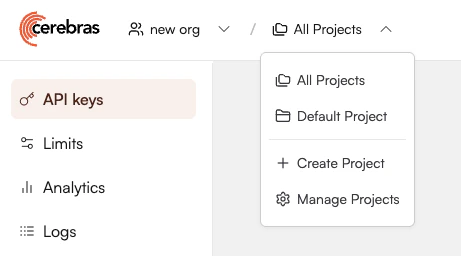
Create a Project
Only Org Admins can create projects.
- In the console, open the Projects tab or select it from the Projects dropdown.
- Click Create project.
- Enter a project name.
- Click Save. The project is created under your organization with no custom quotas, so it inherits org-level limits by default.
Recommended Project Structures
- By environment
- By application
- By business unit
Separate projects for each deployment stage:
Configure Rate Limits
Cerebras uses a two-level quota model. Every request must satisfy both levels to proceed.
By default, projects have no explicit quotas and inherit org-level limits. For example:
If
prod and test together attempt 1,300,000 TPM, some requests are throttled at the organization level — even though each project is individually within its own configured limit.
Set Project-Level Rate Limits
Only Org Admins can set project rate limits.
- From the All Projects view, open the Projects tab.
- Identify the project and click Project Settings.
- For each model, set the desired rate limits.
- Click Save.
- Starting with conservative limits for new projects
- Monitoring 429 responses and usage graphs per project
- Adjusting as you gain confidence in your workload patterns
Manage Service Tiers
If service tiers are enabled for your organization, use theservice_tier request parameter to prioritize traffic across projects — flex for lower-priority projects and priority for production. See the Service Tier guide for details.
Archive Projects
Only Org Admins can archive projects. You cannot archive your last remaining project. Archiving invalidates all API keys in the project, preserves usage logs for auditing, and revokes member access to the project.FAQs
What happened to my existing API keys and usage?
What happened to my existing API keys and usage?
They’ve been migrated into a Default Project under your organization, with the same quotas and members. Behavior is unchanged unless you configure additional projects or project-level limits.
Do I have to use multiple projects?
Do I have to use multiple projects?
No. Using only the Default Project is fully supported. Create additional projects only if you need isolated rate limits, access control, or separate analytics by use case.
Can I delete a project?
Can I delete a project?
Projects can be archived but not permanently deleted. Archiving disables all API keys in the project and preserves logs and usage history.
Can an API key belong to multiple projects?
Can an API key belong to multiple projects?
No. Each API key is scoped to exactly one project. To move a workload, create a new key in the target project and update your application to use it.
Do projects affect billing?
Do projects affect billing?
Projects don’t create separate billing accounts. All usage accrued within a project is billed through your top-level organization. Projects provide logical segmentation for quotas, keys, and usage, but billing is always aggregated and invoiced at the organization level.
Why am I getting 429s on one project but not another?
Why am I getting 429s on one project but not another?
You may be hitting the project-level limit for that project, or the org-level ceiling across all projects. Check the Limits page for both the project and the org, then review the project’s analytics.